Deployment Flow
A complete 9-step guide to deploying your application on Dokploy, organized into 3 phases.
The full deployment process consists of 9 steps across 3 phases. Follow them in order for your first deployment.
| Phase | Steps | What you'll do |
|---|---|---|
| Phase 1 — Setup | Steps 1–4 | Get accounts, network access, and sign in |
| Phase 2 — Project Configuration | Steps 5–7 | Create a service, connect GitLab, push code with security |
| Phase 3 — Deploy & Publish | Steps 8–9 | Deploy your app and set up a public domain |
Phase 1 — Setup (Steps 1–4)
Step 1 — Request Accounts
Submit an access request for both systems: host.vnggames.ai and code.vnggames.ai.
See: Access Requirements
Step 2 — Connect to the Network
Ensure you are connected via VNGCorp Wi-Fi, Cable network, or Global VPN before accessing either tool.
Step 3 — Sign In
Log in to host.vnggames.ai and code.vnggames.ai using VNG SSO – OIDC.
Step 4 — Wait for Access Approval
Once your request is approved, you will have full access to both systems.
Phase 2 — Project Configuration (Steps 5–7)
Step 5 — Create a Service in Your Project
On host.vnggames.ai, navigate to your project and create a Service within it.
Step 6 — Connect GitLab to Dokploy
Register a GitLab OAuth Application on code.vnggames.ai and link it to Dokploy. This authorizes Dokploy to access your repositories and connect your source code to the deployment pipeline.
See: Git Integration
Step 7 — Push Code & Enable Security Scanning
Push your code to GitLab, then enable the following security features:
| Feature | What it does |
|---|---|
| SAST | Scans source code for known vulnerabilities on every push |
| Secret Detection | Detects API keys, tokens, and credentials accidentally committed |
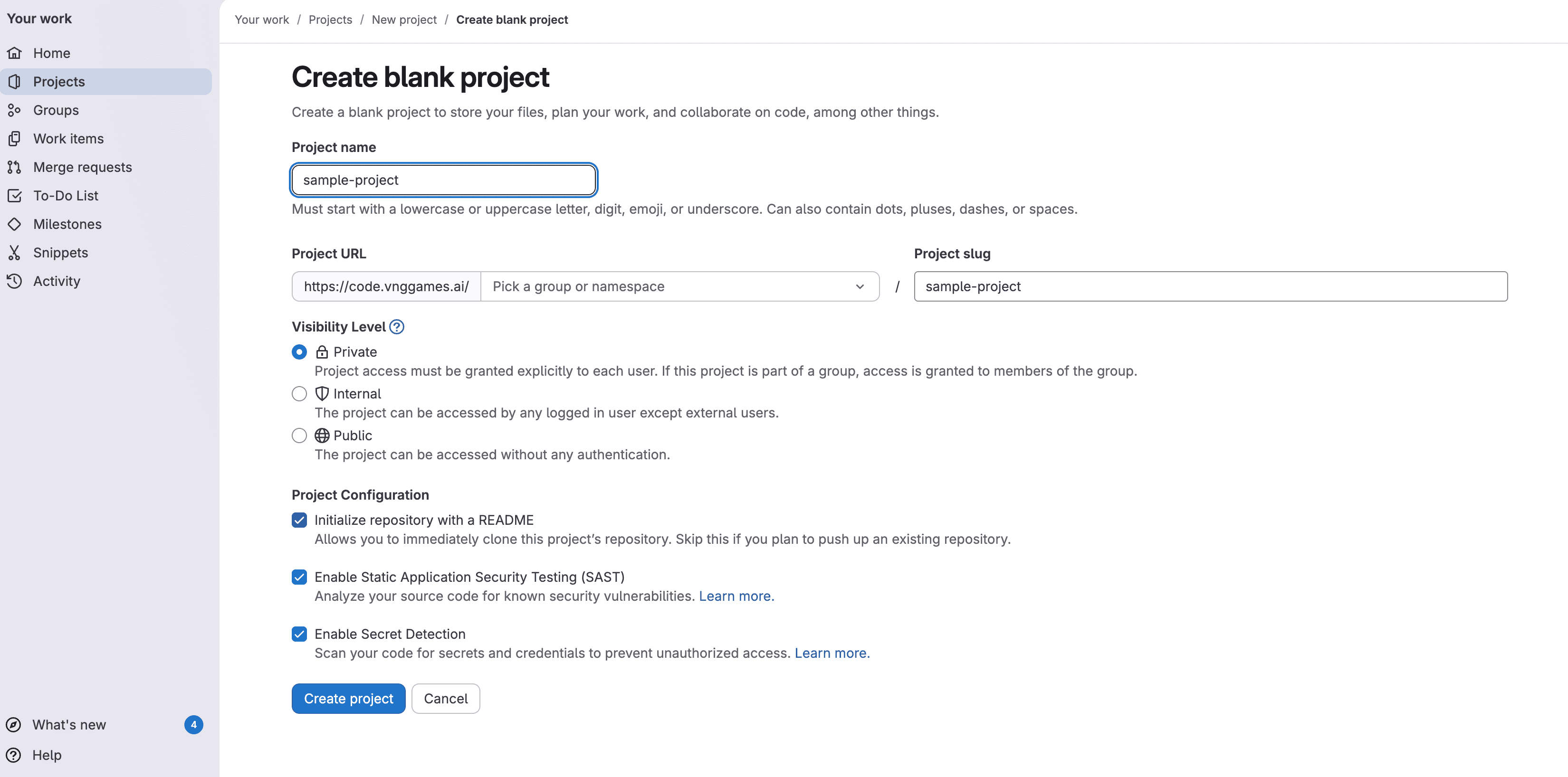
When creating the project on GitLab (code.vnggames.ai → New project → Create blank project), scroll to Project Configuration at the bottom and enable both options before clicking Create project:
If the project already exists and scanning was not enabled, follow these steps inside GitLab:
Step 1 — Open Security Configuration
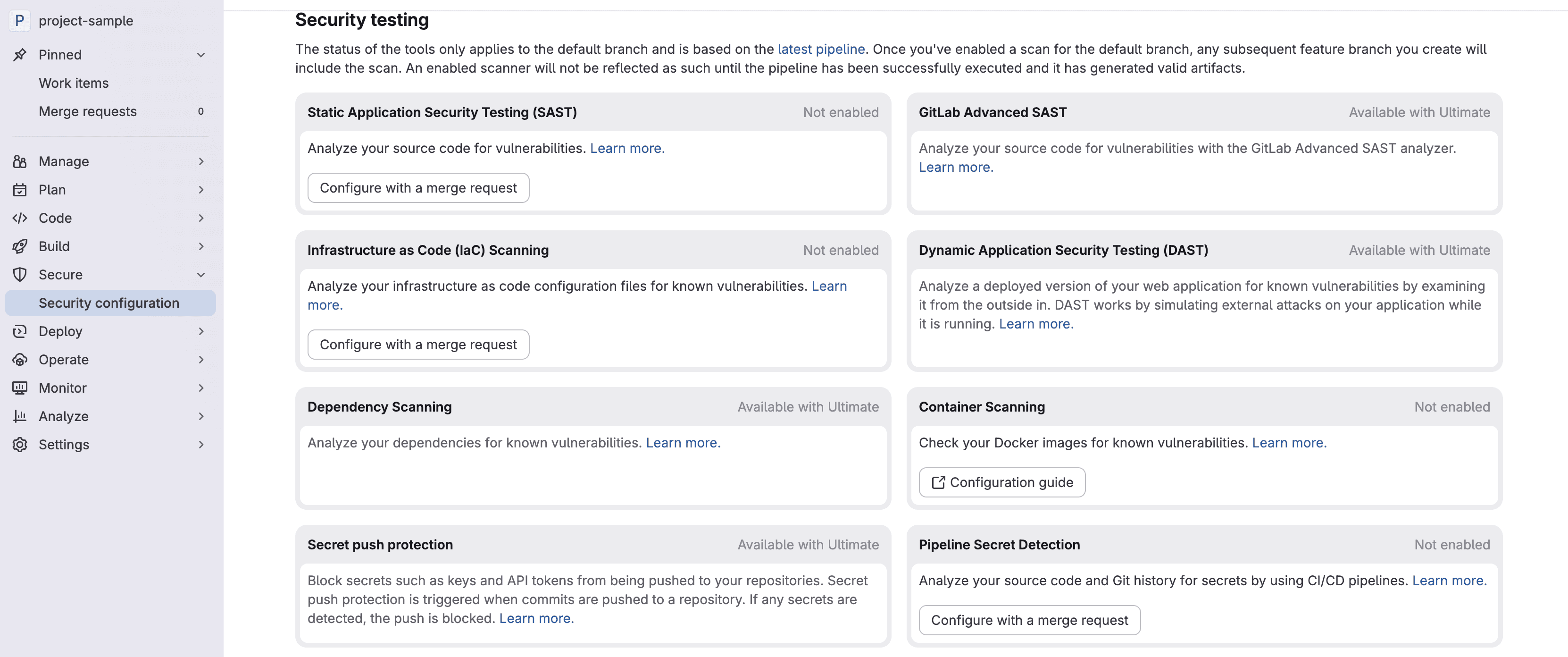
Go to your project → Secure → Security configuration. In the scanner grid, find Static Application Security Testing (SAST) and Pipeline Secret Detection, then click Configure with a merge request for each:
Step 2 — Create the Merge Request
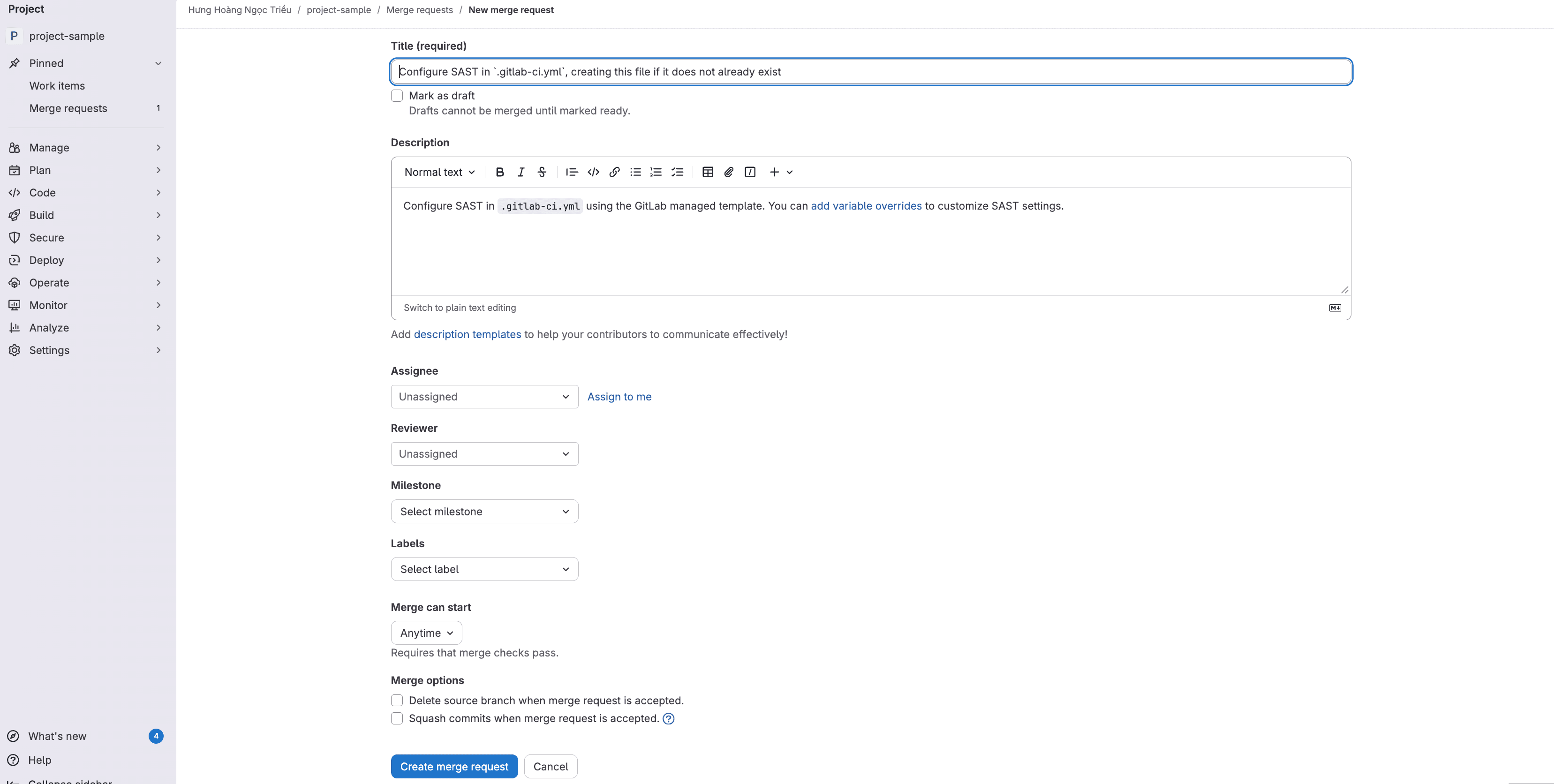
GitLab pre-fills a merge request that adds the scanner configuration to .gitlab-ci.yml. Review the title and description, then click Create merge request:
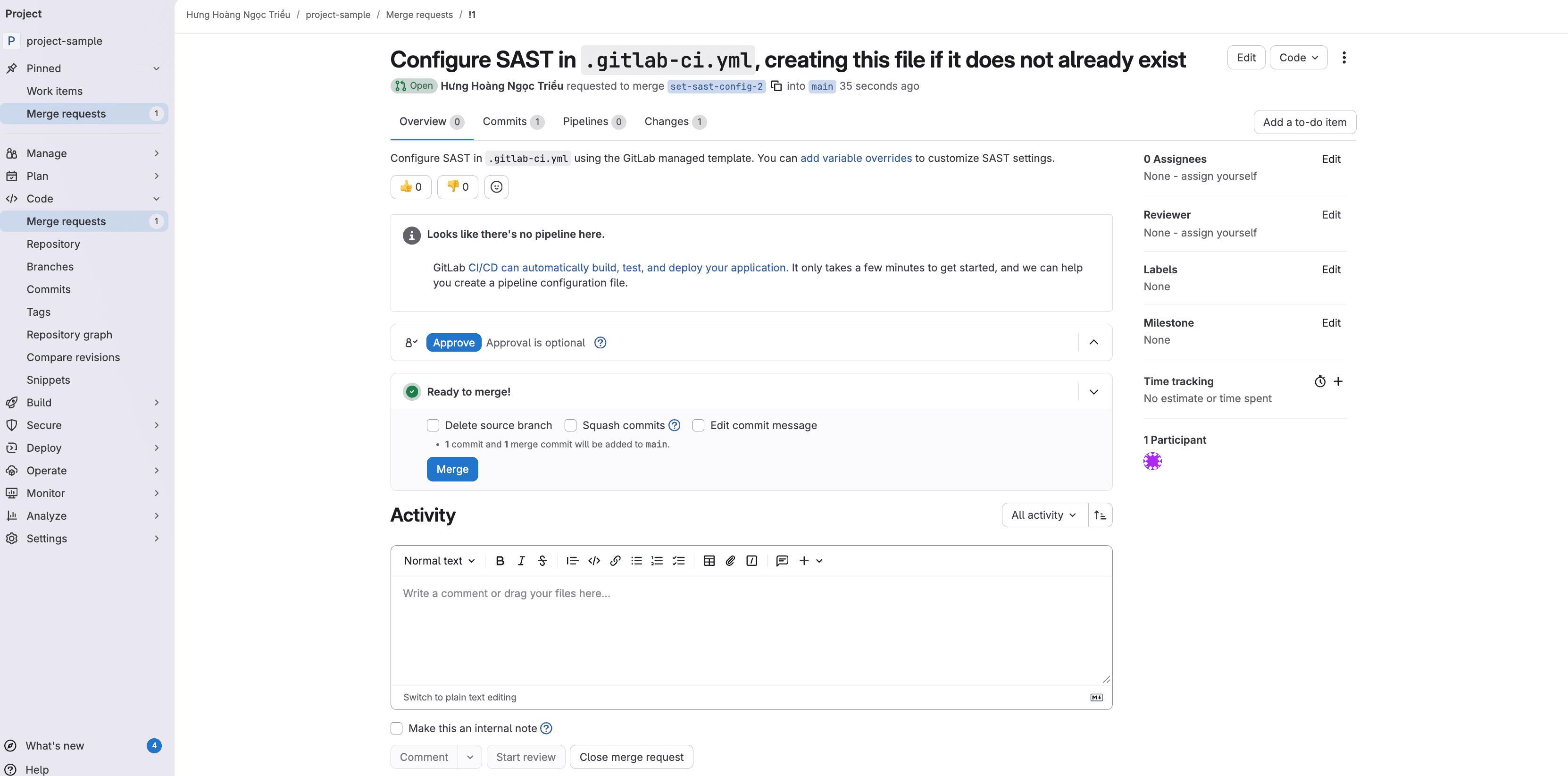
Step 3 — Merge the Configuration
Once the MR is open and pipelines pass, click Merge to apply the configuration to your default branch:
Step 4 — Verify .gitlab-ci.yml
After merging, GitLab adds a .gitlab-ci.yml file to your repository root. This file defines the security scan stages that run automatically on every push:
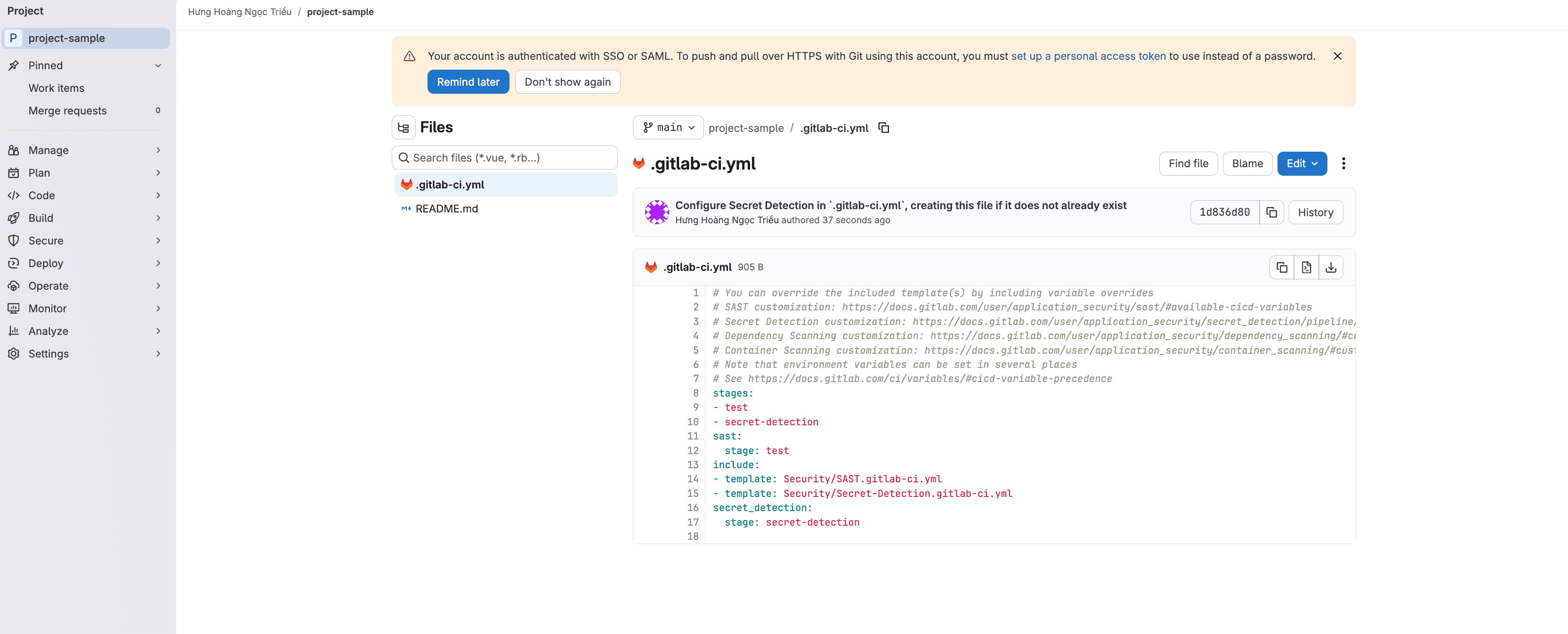
Repeat Steps 1–3 for each scanner (SAST and Pipeline Secret Detection). Both must be configured to get full coverage.
Phase 3 — Deploy & Publish (Steps 8–9)
Step 8 — Deploy Service
In your Application/Service on Dokploy, click Deploy to trigger the first deployment manually. Wait for the build to complete and confirm the service is running.
To automatically redeploy on every git push, see Setup Auto Deploy.
Step 9 — Add a Domain
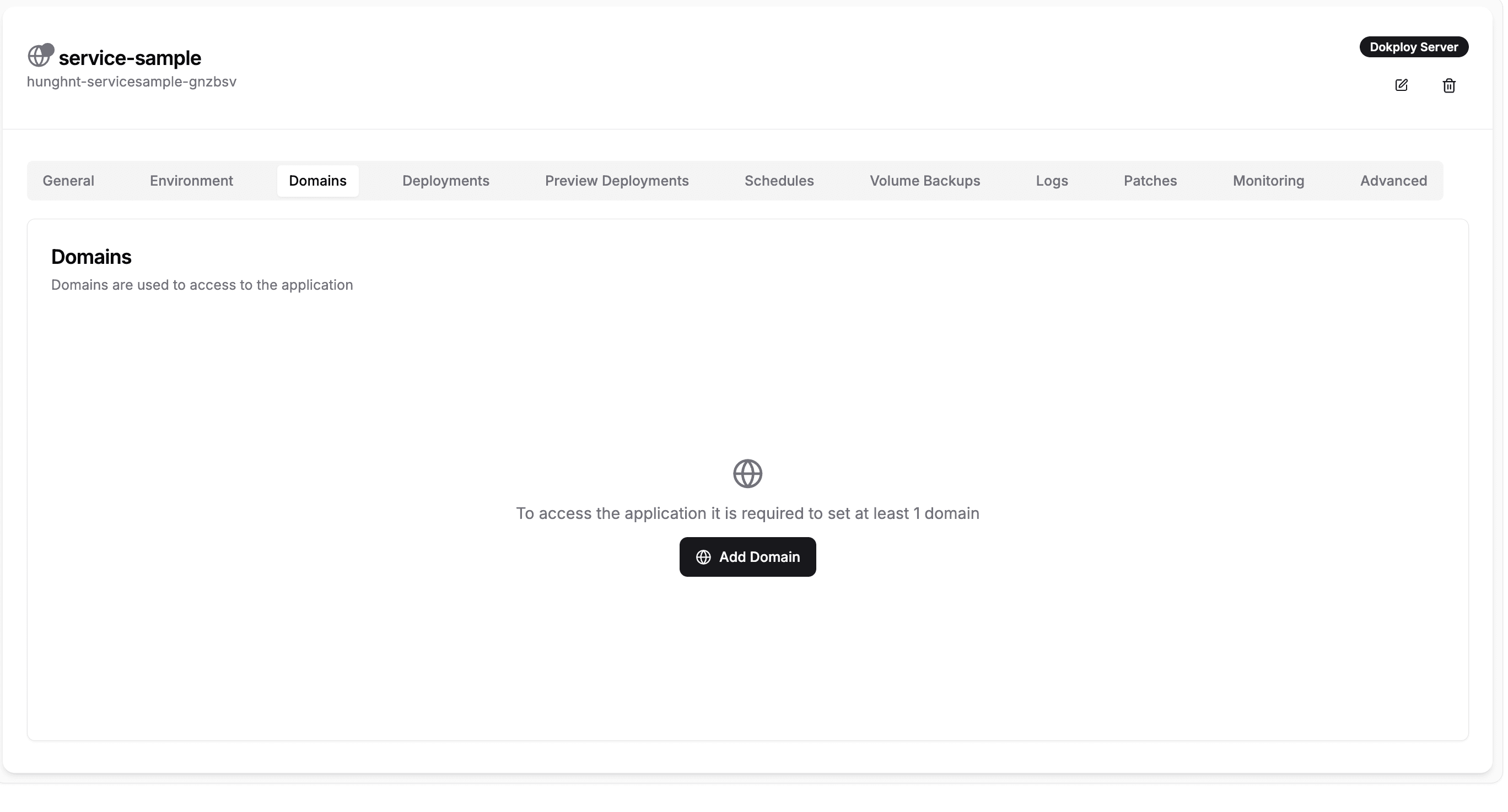
In your Application, go to the Domains tab and click Add Domain:
Choose one of the following options based on your needs:
A free subdomain is auto-generated by Dokploy in the format *.traefik.me. No configuration needed — just set the container port.
| Field | Value |
|---|---|
| Host | Auto-filled by Dokploy |
| Container Port | Port your app listens on (e.g., 3000) |
| HTTPS | Leave off |
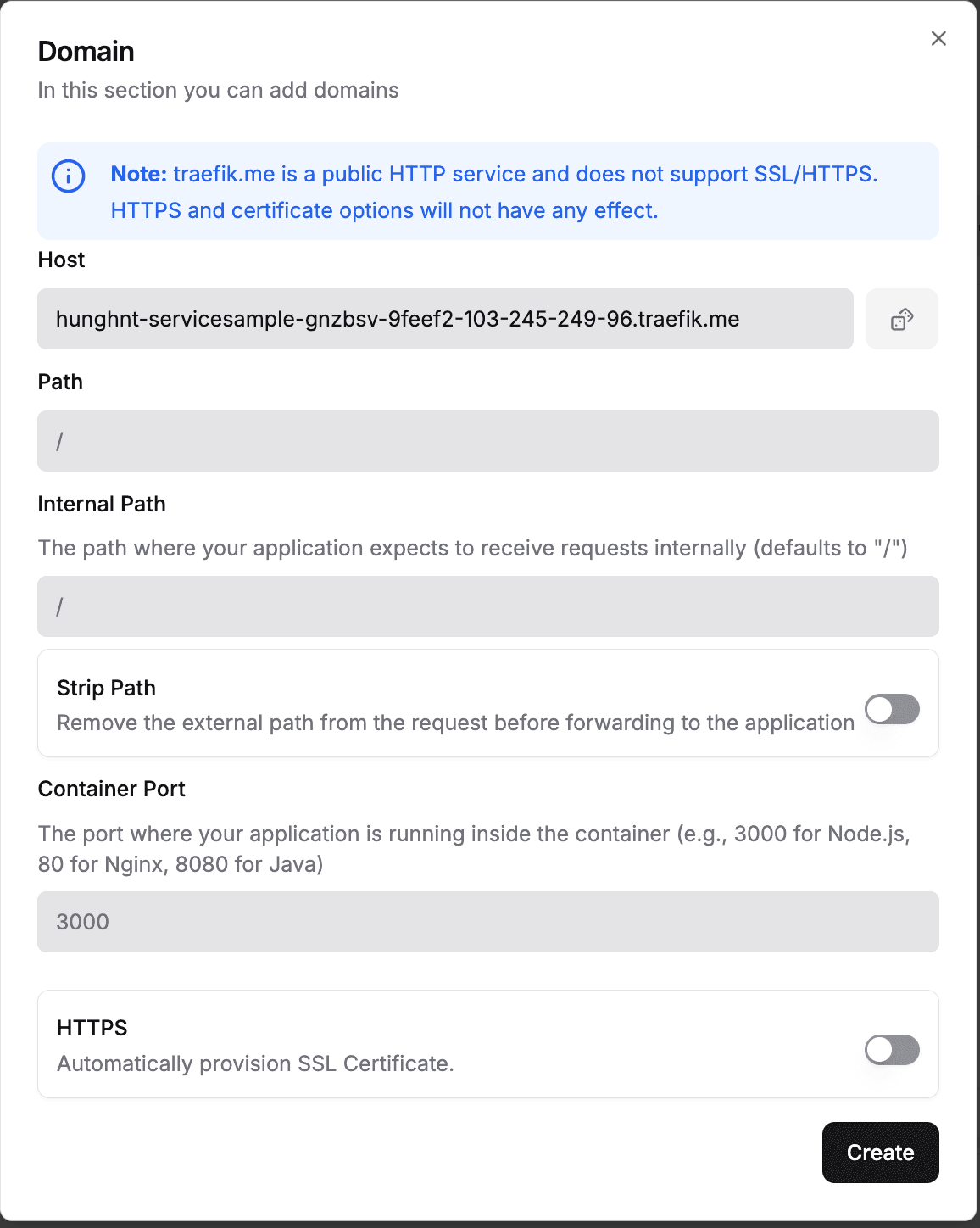
traefik.me is a public HTTP service and does not support SSL/HTTPS. HTTPS and certificate options will have no effect.
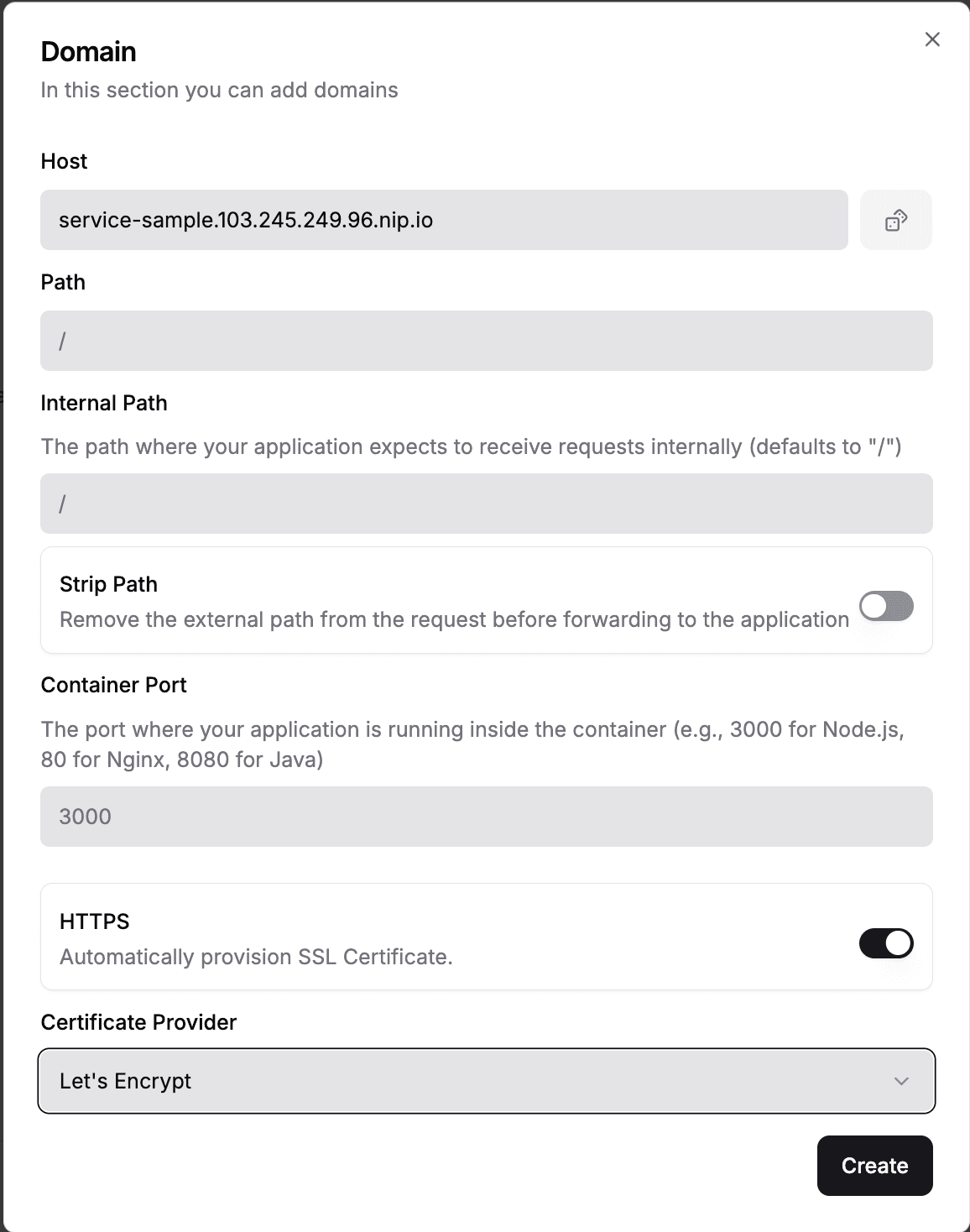
nip.io maps any subdomain containing an IP address back to that IP — no DNS setup required. Use this option when you need HTTPS.
| Field | Value |
|---|---|
| Host | <app-name>.103.245.249.96.nip.io (e.g., service-sample.103.245.249.96.nip.io) |
| Container Port | Port your app listens on (e.g., 3000) |
| HTTPS | Toggle on |
| Certificate Provider | Select Let's Encrypt |