Git Integration
Connect your GitLab repository to a Dokploy service to enable source-based deployments.
Connecting your GitLab repository to Dokploy allows the platform to pull your source code and build your application on every deployment.
Prerequisites
- A service created inside your Dokploy project (see Deployment Flow)
- A GitLab group access on code.vnggames.ai provided by the AIT team
Part 1 — Register a GitLab OAuth Application (one-time setup)
This step is required once per Dokploy instance. It authorizes Dokploy to access repositories on code.vnggames.ai.
Step 1 — Open GitLab User Settings
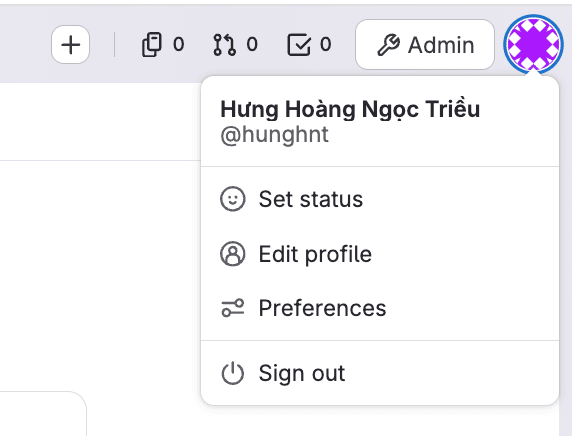
Log in to code.vnggames.ai, click your avatar (top-right corner) to open the dropdown, then select Preferences.
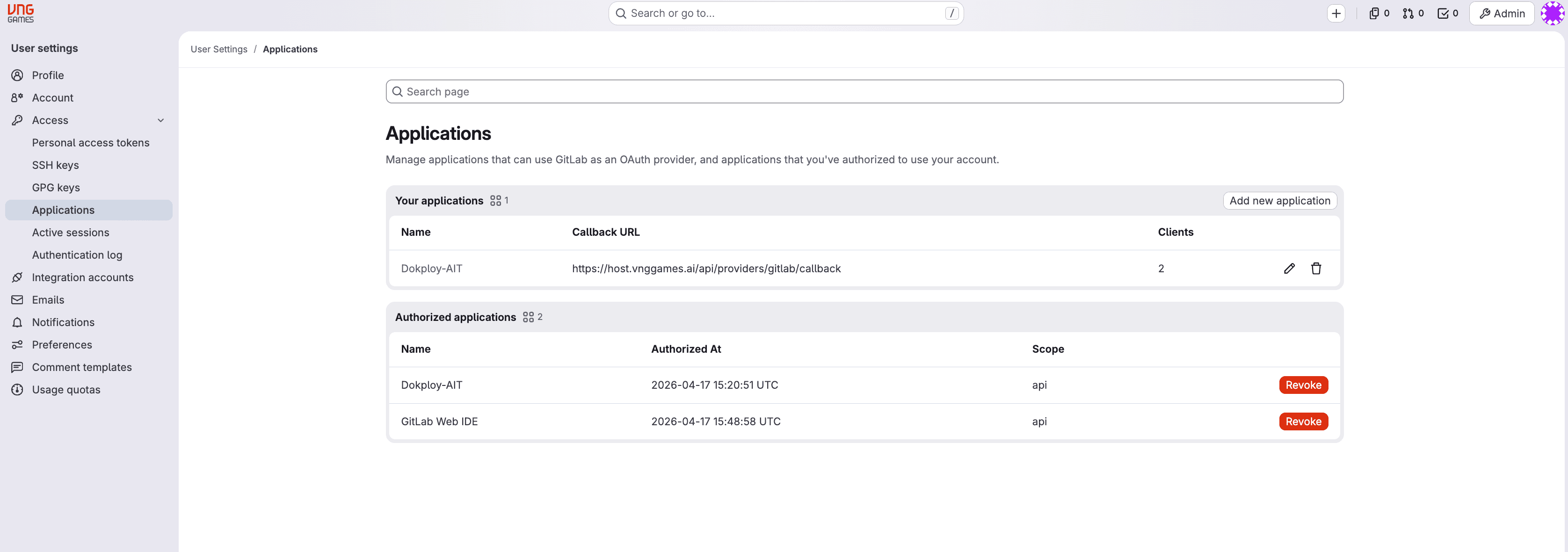
In the left sidebar, navigate to Applications.
Step 2 — Create a New Application
On the Applications page, click Add new application.
Fill in the form:
| Field | Value |
|---|---|
| Name | Any name you prefer (e.g. Dokploy) |
| Redirect URI | https://host.vnggames.ai/api/providers/gitlab/callback |
| Confidential | ✅ Checked |
| Scopes | ✅ api · ✅ read_user · ✅ read_repository |
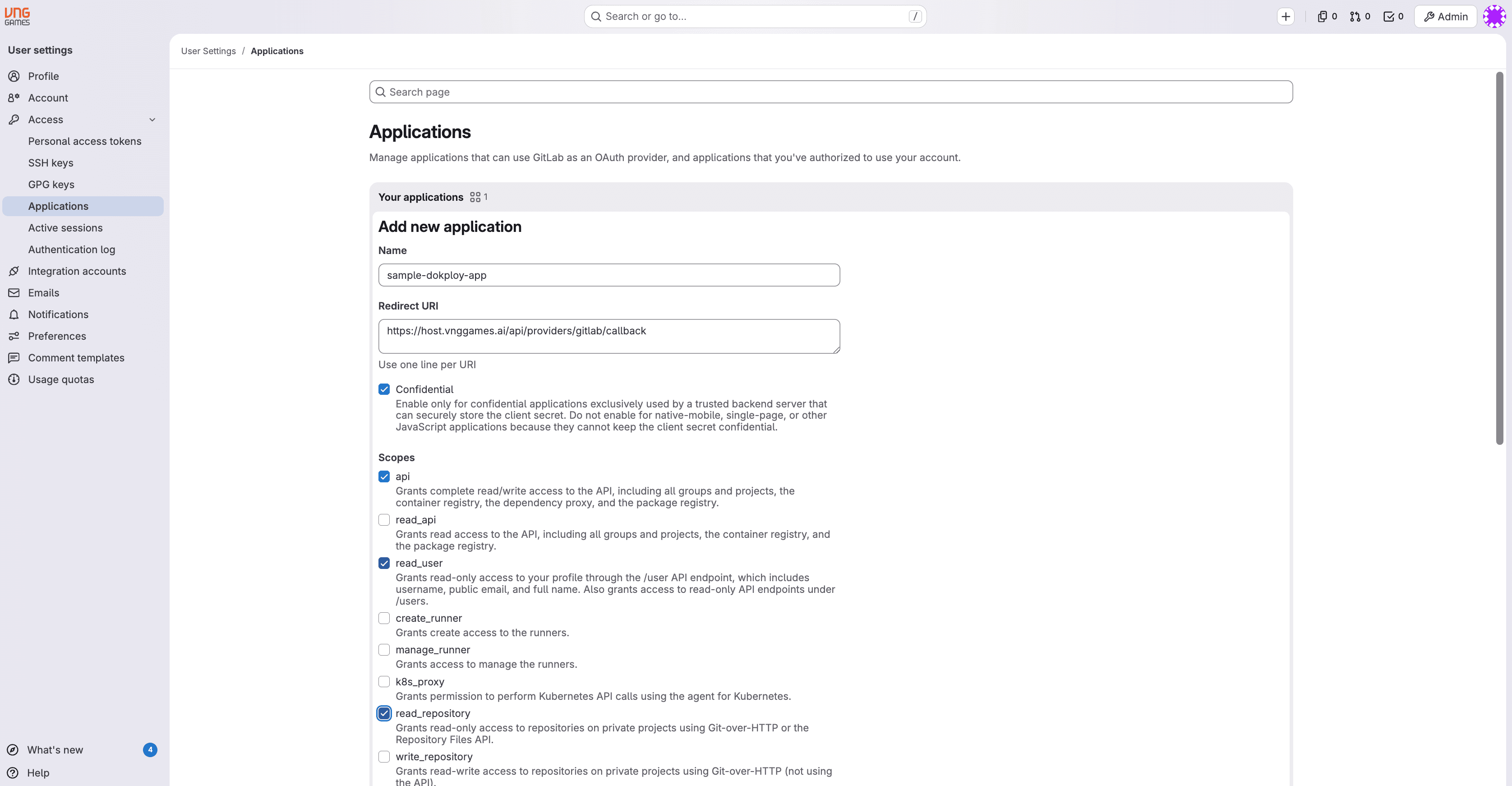
Click Save application.
Step 3 — Copy the Credentials
GitLab will display the Application ID and Secret. Copy both — you will need them in Part 2.
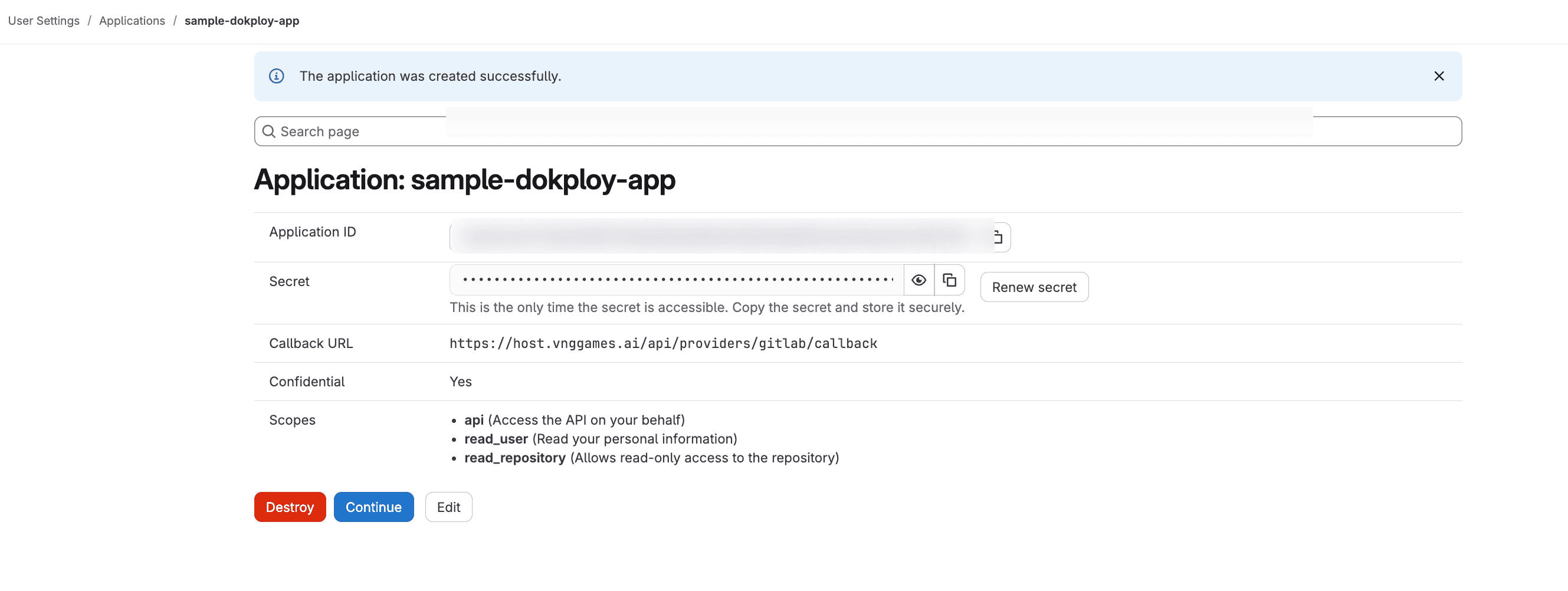
The Secret is only shown once. Store it securely before leaving this page.
Part 2 — Connect Repository to Your Service
Step 1 — Configure Git Provider in Dokploy
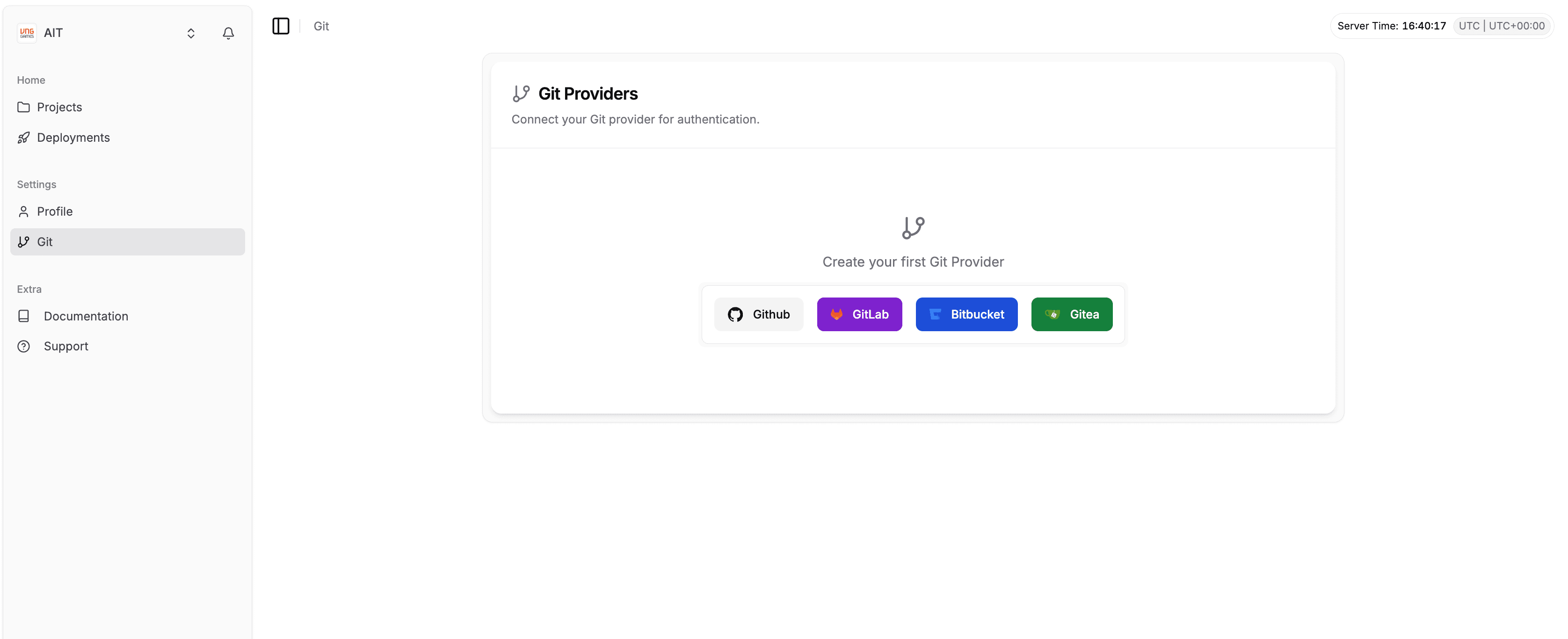
Log in to host.vnggames.ai and go to Settings → Git, then click GitLab to open the configuration form.
In the left sidebar, go to Settings → Git. Click GitLab from the available providers.
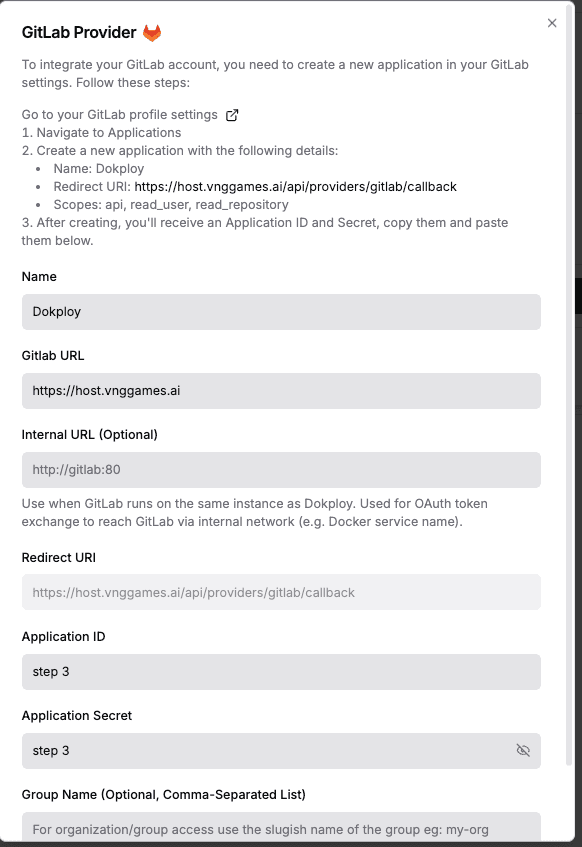
Fill in the following fields with the credentials from Part 1:
| Field | Value |
|---|---|
| Name | Any name you prefer (e.g. Dokploy) |
| GitLab URL | https://code.vnggames.ai |
| Redirect URI | Auto-filled — https://host.vnggames.ai/api/providers/gitlab/callback |
| Application ID | Paste from Part 1 – Step 3 |
| Application Secret | Paste from Part 1 – Step 3 |
| Group Name | Your GitLab group slug (e.g. my-team) — optional |
Click Save. Dokploy will redirect you to GitLab to authorize — click Authorize.
Step 2 — Authorize the Provider
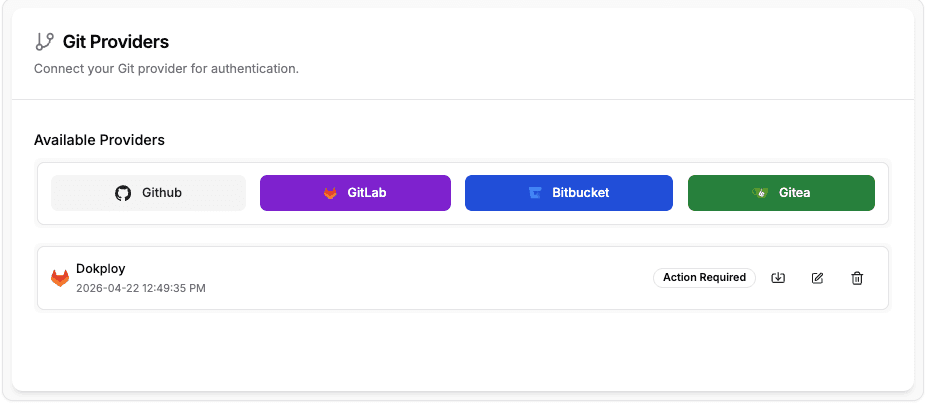
After saving, your GitLab provider will appear in the list with an Action Required badge. Click the authorize icon (↓) on the right to proceed to GitLab authorization.
Your provider appears with an Action Required badge — click the authorize icon on the right.
GitLab will ask you to confirm access. Review the permissions, then click Authorize to grant Dokploy access to your repositories.

Step 3 — Configure the Service
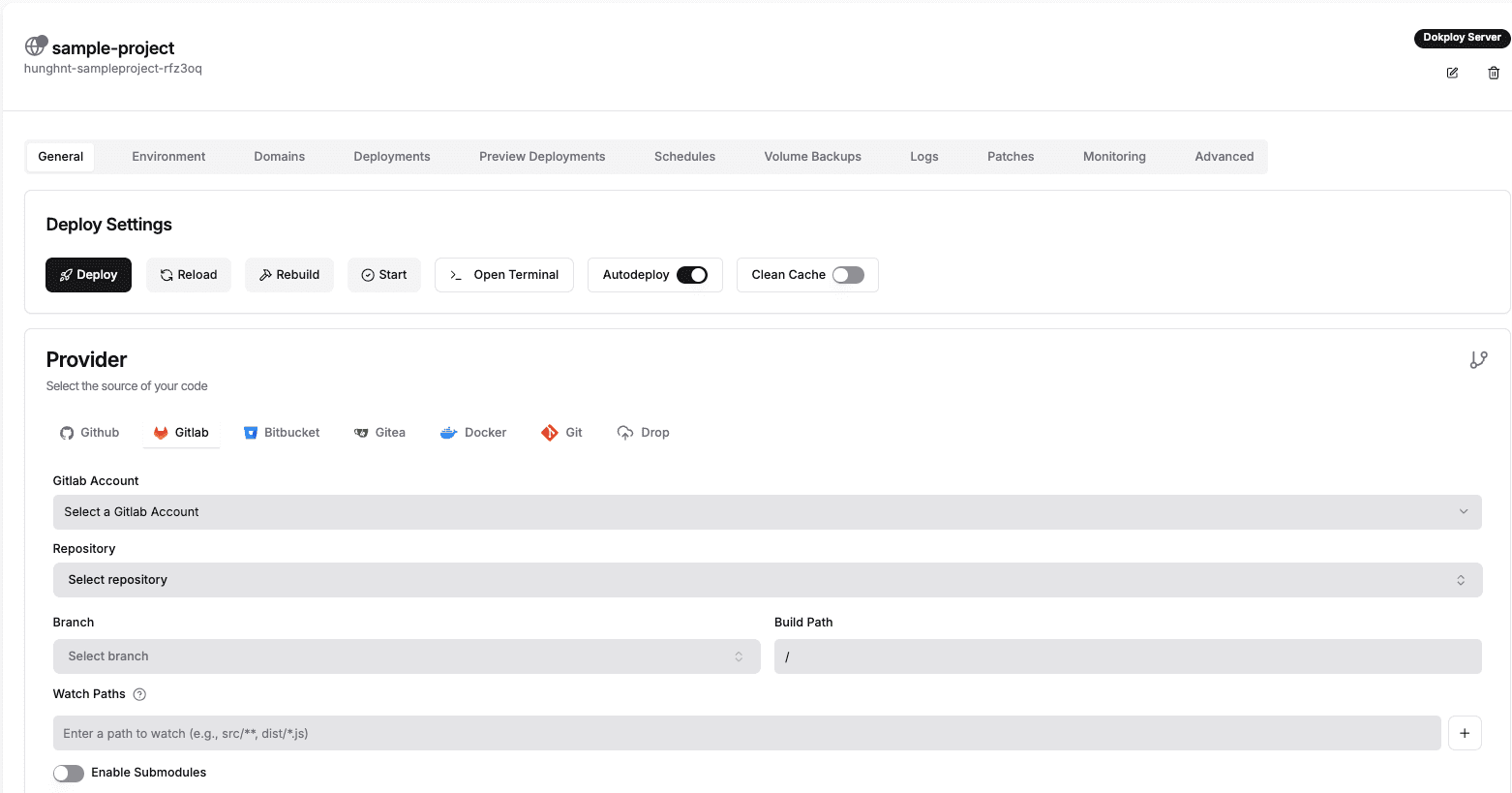
Navigate to your project, open the service, then go to the General tab.
Under Provider, select GitLab and fill in the following fields:
| Field | Value |
|---|---|
| GitLab Account | Select the connected account |
| Repository | Select your repository from code.vnggames.ai |
| Branch | Branch to deploy from (e.g., main) |
| Build Path | Root directory of your app (default: /) |
Scroll down to the Build Type section and select how your app should be built:
| Option | When to use |
|---|---|
| Nixpacks | Recommended — auto-detects language and builds automatically |
| Dockerfile | Use if your repo has a custom Dockerfile |
| Railpack | New alternative to Nixpacks |
| Static | For static sites served via NGINX |
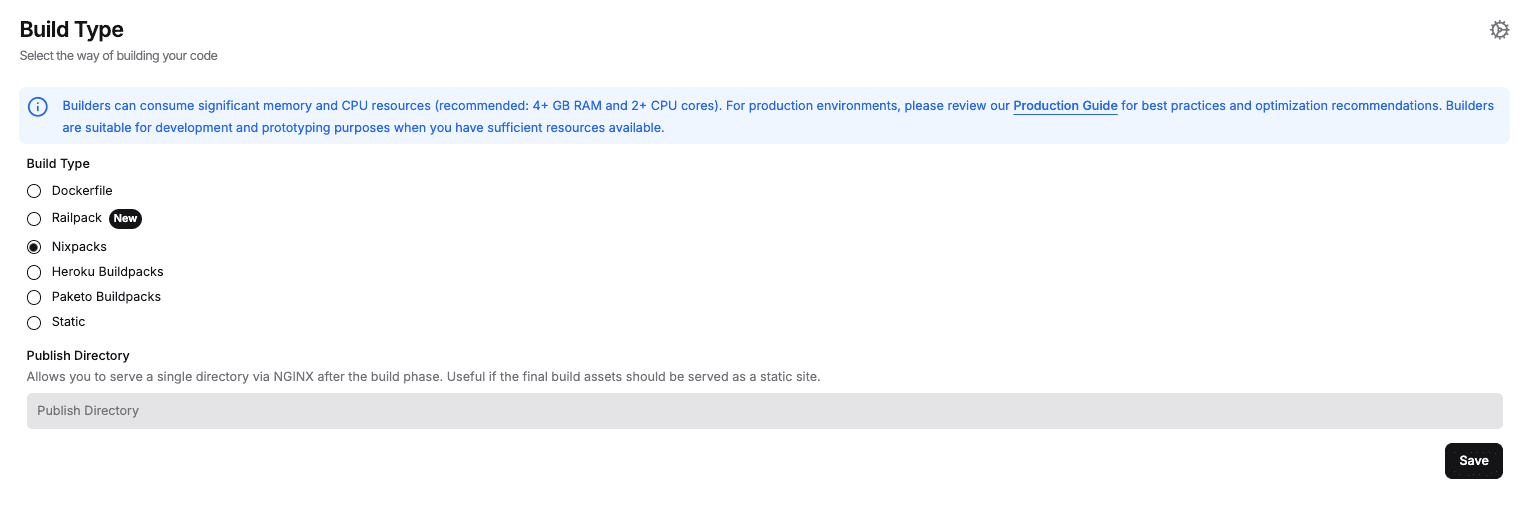
Click Save, then trigger a manual deploy to verify everything is connected correctly.
After connecting the repository, set up Auto Deploy via webhook to automatically redeploy on every git push.